
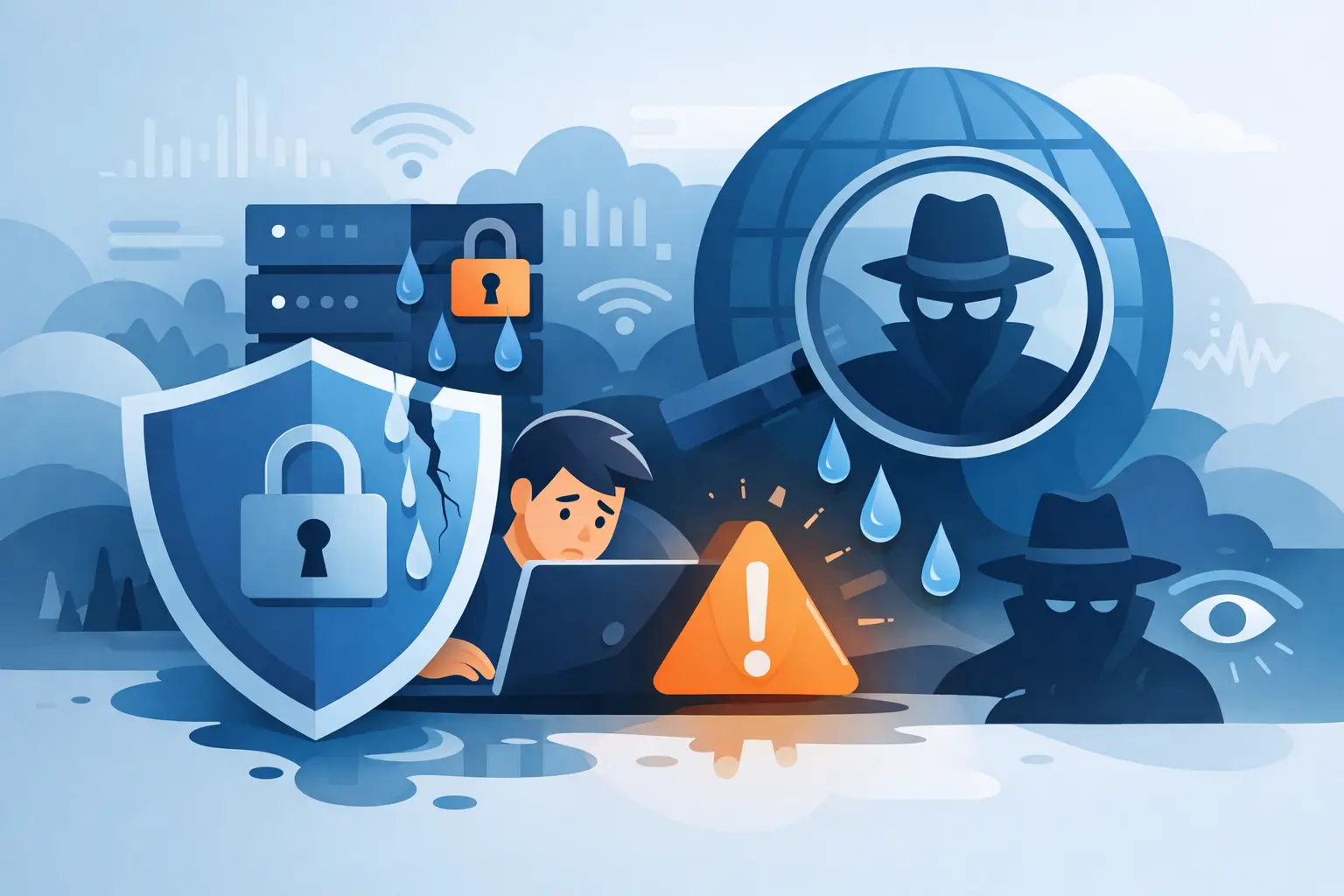
You turn on a VPN, see the connected badge, and assume you’re covered. Then your real IP, DNS requests, or location slips through anyway. That’s why learning how to avoid VPN leaks matters. A VPN should protect your traffic, not leave quiet gaps that expose who you are, where you are, or what network you’re on.
Most leaks are not dramatic hacks. They’re usually small failures in configuration, browser behavior, operating system defaults, or weak VPN features. The good news is that most of them are preventable. If you know where leaks come from, you can close the common holes fast and keep your privacy intact across laptops, phones, tablets, and smart TVs.
What a VPN leak actually is
A VPN leak happens when some part of your internet traffic bypasses the encrypted tunnel and reaches your internet provider, a website, or another third party directly. That can reveal your public IP address, your DNS activity, your IPv6 address, or even location data tied to WebRTC in a browser.
This matters for more than anonymity. A leak can undermine secure browsing on public Wi-Fi, weaken protection against tracking, and make location switching unreliable. If you use a VPN to reduce surveillance, avoid network snooping, or access content while traveling, even a partial leak can defeat the point.
The main leak types you need to care about
The most common problem is an IP leak. That means a site or service can still see the real IP assigned by your internet provider instead of the VPN server IP. If that happens, your location and identity are far easier to tie back to you.
DNS leaks are just as serious. DNS requests translate website names into IP addresses. If those requests go to your ISP’s DNS servers instead of private DNS routed through the VPN, your browsing activity can still be visible even when the rest of your traffic looks encrypted.
Then there’s IPv6 leakage. Some networks and devices use IPv6 alongside IPv4. If your VPN handles only IPv4 traffic correctly, your IPv6 traffic may escape the tunnel. Browser-based WebRTC leaks can also reveal local or public IP details during real-time communications, especially if browser settings are left wide open.
How to avoid VPN leaks from the start
The easiest fix is choosing a VPN built to prevent leaks, not just mask an IP. That means private DNS, leak protection by default, and a kill switch that cuts internet access if the VPN drops. Without those basics, you are relying on luck.
Protocol choice also matters. Older or poorly configured protocols can create weak points. Stick with well-supported options such as OpenVPN or IKEv2 when available, and avoid obscure or outdated setups unless you have a specific reason. Strong encryption is essential, but so is how the app handles routing, reconnections, and DNS requests in real conditions.
If you use multiple devices, don’t assume one setup covers all of them equally. Desktop, mobile, browser extensions, and smart TV apps can behave differently. A VPN that works cleanly on Windows may need different settings on Android or iPhone.
Check your DNS settings before they betray you
A lot of users never look at DNS settings, and that’s where leaks often begin. Your device may still be pointing to your ISP’s default DNS servers or to manually configured public DNS servers outside the VPN tunnel. If the VPN app doesn’t force private DNS routing, those requests can escape.
The safest approach is to use a VPN that routes DNS requests through its own private DNS infrastructure. That reduces exposure and keeps your DNS activity aligned with the VPN connection. If your operating system has custom DNS settings saved from old troubleshooting steps, remove them unless you know they are fully compatible with your VPN setup.
On mobile devices, be careful with features like Private DNS on Android or network-specific DNS settings on public or office Wi-Fi. They can conflict with VPN behavior depending on how the app is designed. This is one of those cases where simple is safer. Let the VPN handle DNS whenever possible.
Why the kill switch is not optional
If your VPN disconnects for even a few seconds, your device may reconnect through the regular internet connection immediately. That short window is enough to expose your IP, trigger background app traffic, or send DNS requests outside the tunnel. A kill switch blocks internet traffic until the VPN reconnects.
This is especially important on unstable networks. Airport Wi-Fi, hotel networks, mobile data handoffs, and overloaded public hotspots are all common failure points. If you travel often or move between networks during the day, the kill switch is one of the most important tools you can enable.
Some VPN apps offer a system-wide kill switch, while others provide app-level protection. System-wide coverage is stronger because it protects everything, not just selected apps. If privacy is the goal, broader protection is the better choice.
Browser settings can still expose you
You can have a strong VPN and still leak details through your browser. WebRTC is the usual culprit. It helps with voice, video, and peer-to-peer communication, but it can also reveal IP information in some setups.
Browsers differ here. Some make it easier to limit WebRTC exposure, while others leave fewer controls available. If you use browser extensions, remember they do not always protect all device traffic the way a full VPN app does. For stronger coverage, use the full VPN application and then harden your browser settings if needed.
Extensions and plugins can also create noise. Ad blockers, privacy tools, and custom proxies can help, but they can also conflict with routing behavior. If you see inconsistent results in leak tests, simplify your setup first. Too many overlapping tools can create gaps instead of closing them.
How to avoid VPN leaks on public Wi-Fi and mobile networks
Public Wi-Fi is one of the biggest reasons people use a VPN, but it also creates more opportunities for drops, captive portals, and network switching issues. Connect the VPN before logging into sensitive accounts. If the network forces a browser-based sign-in page, complete that first, then reconnect your VPN and confirm it stays active.
On phones, switching between Wi-Fi and cellular data can briefly interrupt the tunnel. That handoff is a classic moment for leaks if your app doesn’t reconnect quickly or if the kill switch is off. Keep auto-connect enabled on untrusted networks and verify that your mobile VPN app launches on startup.
Battery optimization settings can also interfere with background VPN stability, especially on Android. If your device aggressively closes apps to save power, the VPN may disconnect silently. Exempt your VPN from battery restrictions if you notice random drops.
Test for leaks regularly, not once
One of the biggest mistakes is testing a VPN only on day one. Updates to your OS, browser, router, or VPN app can change behavior. New networks can also expose issues you never saw at home.
Run leak tests periodically and after any major device or app update. Check for IPv4, IPv6, DNS, and WebRTC exposure. Do it on desktop and mobile, not just one device. If you use split tunneling, test both the protected apps and the ones excluded from the tunnel. Split tunneling is useful, but it adds complexity, and complexity can create mistakes.
If a test shows your real IP or ISP DNS servers, stop and fix it before treating the connection as private. That may mean changing protocol settings, disabling IPv6 at the device level, removing manual DNS entries, or switching to a VPN with stronger leak protection built in.
The trade-off between convenience and tighter privacy
Some settings make life easier but reduce certainty. Split tunneling is convenient if you want one app to use your normal connection and another to use the VPN, but it increases the chance of accidental exposure. Browser-only protection is lightweight, but it doesn’t cover system-wide traffic. Fast reconnect features can help, but only if they are paired with a kill switch.
That doesn’t mean you need the most restrictive setup possible. It means you should match your settings to your risk level. If you mainly want safer browsing on coffee shop Wi-Fi, a reliable app with private DNS and a kill switch may be enough. If you are more concerned about tracking, surveillance, or censorship, tighter controls are worth the extra friction.
A premium service like LunoVPN is built around this balance – strong leak protection, private DNS routing, and kill switch coverage without turning privacy into a technical project.
Privacy should not depend on guesswork. The best way to avoid VPN leaks is to use a VPN designed to prevent them, keep your settings clean, and test often enough to catch problems before they expose you. That gives you what a VPN is supposed to deliver in the first place: control.


